
Let’s be real—that $12.99 monthly Canva Pro subscription adds up fast. And when you’re a student, freelancer, or small business owner watching every dollar, it can feel like a luxury you just can’t justify. But here’s the thing: you don’t always need to pay for Canva Pro to access its best features.
I’ve spent months testing every legitimate method to use Canva Pro for free, and I’m sharing everything that actually works. No sketchy hacks, no pirated accounts—just honest, legal ways to unlock premium templates, remove backgrounds, and access thousands of pro elements without spending a dime.
Whether you’re wondering how to use Canva for free as a student, looking for ways to use Canva Pro templates for free, or just want to stretch that free trial as far as possible, this guide has you covered.
Understanding Canva Free vs Canva Pro: What’s the Real Difference?
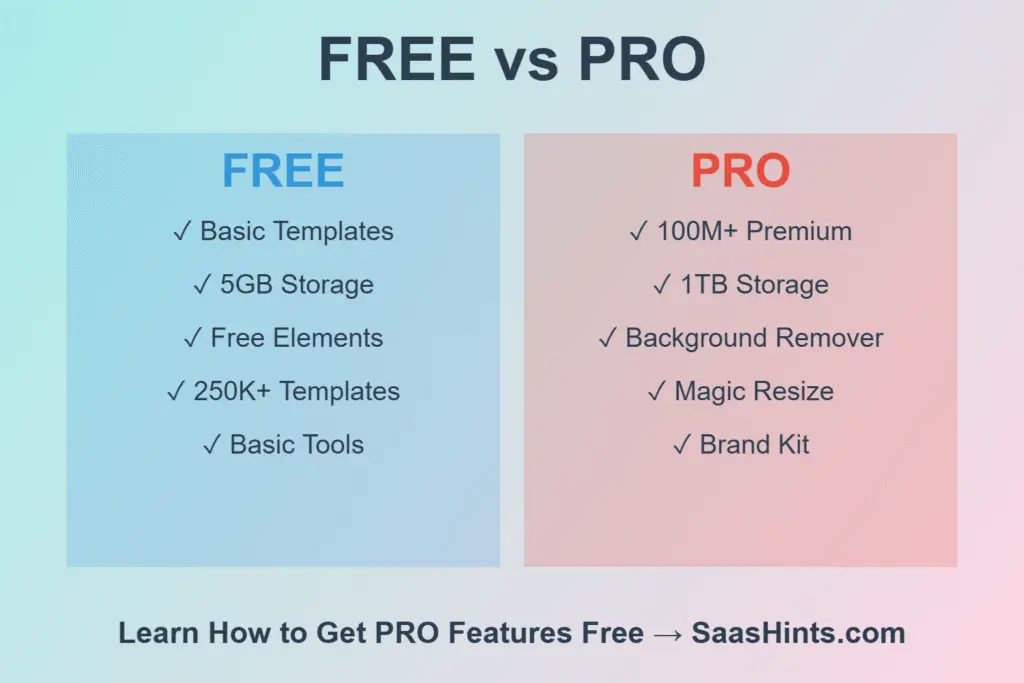
Before we dive into how to use Canva Pro for free legally, let’s talk about what you’re actually missing with the free version. Canva’s free tier is honestly pretty generous—you get access to thousands of templates, basic design tools, and 5GB of storage. For casual users, it’s often enough.
But here’s where the free version falls short:
What You Miss Without Canva Pro:
- 100+ million premium stock photos, videos, and graphics (marked with a crown icon)
- Background remover tool (honestly, this one alone is worth the upgrade)
- Magic Resize to adapt designs for different platforms instantly
- Brand Kit to save your fonts, colors, and logos
- Bulk Create for generating multiple designs at once
- Custom fonts and advanced animation options
- Priority support when something goes wrong
The difference becomes obvious when you’re creating professional content. You’ll find the perfect template or image, only to see that dreaded crown icon telling you it’s Pro-only. Frustrating, right?
That’s exactly why learning how to use Canva app for free with Pro features matters so much. Let me show you how.
Method 1: The Canva Pro Free Trial (Your 30-Day Head Start)
The most straightforward way to use Canva Pro for free is their official 30-day trial. I know, I know—”free trial” sounds boring. But stick with me, because there’s strategy here.
How to Use Canva Pro for Free Trial (Step-by-Step):
- Go to Canva.com and click “Try Canva Pro Free for 30 Days”
- Sign up with your email (use a real one—you’ll need it)
- Enter payment details (yes, they require this, but you won’t be charged during trial)
- Set a reminder for Day 28 to cancel if you don’t want to continue
Pro Tips to Maximize Your Free Trial:
- Download everything you create during the trial period. Your designs stay accessible, but you’ll lose access to premium elements after cancellation.
- Batch your work. If you know you need designs for the next few months, create them all during your trial.
- Export in multiple formats. Grab PNG, PDF, video—whatever you might need later.
- Screenshot your Brand Kit so you can manually recreate it later if needed.
Here’s something most people don’t realize: while Canva technically limits free trials to one per email, you can use different email addresses for separate trials if you’re working on multiple projects throughout the year. Just be honest and use legitimate email accounts you actually access.
This method of how to use Canva Pro for free lifetime isn’t truly “lifetime,” but if you strategically time your trials around big projects, it’s remarkably effective.
Method 2: Canva for Education (The Best Free Access for Students & Teachers)
If you’re a student or educator, congratulations—you’ve hit the jackpot. This is hands-down the best way to use Canva Pro for free students get access to, and it’s 100% legitimate.
How to Use Canva Pro for Free Using School Email:
Canva for Education gives verified students and teachers full Pro access for free. No time limit, no restrictions. Just pure, unlimited Pro features.
Step-by-Step Setup Process:
- Visit canva.com/education
- Click “Get Verified” or “Sign Up”
- Use your official school email address (.edu, .ac.uk, or your school’s domain)
- Canva automatically verifies most educational institutions
- If auto-verification fails, upload proof of enrollment (student ID, acceptance letter, or transcript)
- Wait 24-48 hours for manual verification
- Once approved, your account upgrades to Canva Pro—completely free
Who Qualifies for Canva Education?
- K-12 students (elementary through high school)
- College and university students (undergraduate and graduate)
- Teachers at accredited institutions
- School administrators and staff
- Homeschool teachers (with proper documentation)
This is legitimately how to use Canva education for free, and it’s my top recommendation if you qualify. I’ve used this method myself, and it works flawlessly.
What If Your School Email Doesn’t Work?
Some schools use non-standard email domains that Canva doesn’t automatically recognize. If that’s you:
- Go to the verification page and choose “Manual Verification”
- Upload a clear photo of your student ID showing your name and school
- Alternatively, upload an unofficial transcript or acceptance letter
- Make sure documents are current (within the last year)
Manual verification takes longer but works just as well. I’ve helped friends get verified this way, and they were approved within 2-3 business days.
The Best Part? Your Canva for Education access lasts as long as you’re enrolled. That’s potentially 4+ years of free Canva Pro for college students. And yes, this is completely legal—Canva actively encourages educational use.
For more ways to leverage educational discounts on design tools, check out our guide to free tools for students on SaasHints.
Method 3: Accessing Premium Templates Without Paying
One of the most common questions I get is how to use Canva Pro templates for free. Those premium templates are gorgeous, professionally designed, and… unfortunately, locked behind the Pro paywall. But there are legitimate workarounds.
Strategy 1: Find Free Alternatives to Pro Templates
Here’s a secret: for almost every Pro template, there’s a similar free version. You just need to know how to find it.
How to Find Free Template Alternatives:
- Open any Pro template you like
- Look at the bottom of the template details—Canva often shows “Similar Templates”
- Filter by “Free” using the sidebar
- Scroll through options until you find something comparable
I do this constantly. Yes, the free version might not be identical, but it’s usually close enough that you can customize it to match your vision.
Strategy 2: Reverse Engineer Pro Templates
This is completely legal and surprisingly effective. When you find a Pro template you love:
- Screenshot the layout and design elements
- Create a blank design in Canva
- Recreate the layout using free elements and your own images
- Match colors and fonts manually
It takes 15-20 minutes extra, but you end up with a custom design that doesn’t look like everyone else’s template anyway. Plus, you’re learning design principles in the process.
Strategy 3: Use Community Templates
Canva has thousands of user-created templates that are completely free. These often rival Pro templates in quality because they’re made by professional designers who share their work.
Search for “free [your topic] template” in Canva’s search bar, and filter by “Free” to see only non-Pro options. I’ve found incredible presentation templates, Instagram posts, and even logo designs this way.
Strategy 4: Customize Free Templates Beyond Recognition
Start with a free template, then:
- Change all the colors to your brand palette
- Swap out fonts for free alternatives
- Replace placeholder text with your content
- Add your own images from free sources
The original template becomes unrecognizable, and you’ve created something unique using only free resources.
For more template resources and design tips, explore our Canva alternatives guide where we cover other platforms offering free professional templates.
This is genuinely how to use premium Canva templates for free without breaking any rules. It requires more effort than clicking “Use Template,” but the results are often better because you’re creating something truly custom.
Method 4: Getting Premium Elements & Images for Free
The crown-marked elements in Canva can be maddening. You find the perfect icon, photo, or graphic… then realize it’s Pro-only. But here’s how to use Canva premium elements for free through smart workarounds.
Free Image Sources Built Into Canva:
Canva integrates several free stock photo libraries directly into their platform. When you search for images, many results come from:
- Pexels: High-quality, royalty-free photos
- Pixabay: Millions of free images and vectors
- Unsplash: Gorgeous professional photography
These are the same images you’d find on those websites, but accessible right inside Canva. The trick is knowing they’re mixed in with Pro content.
How to Filter for Free Images Only:
- Click on “Elements” or “Photos” in the sidebar
- Use the search bar to find what you need
- Look for the filter option and select “Free”
- All results will now be non-Pro content
This simple filter is how to use Canva Pro images for free—or rather, how to use free images that are just as good as Pro ones.
Alternative Strategy: Upload Your Own Assets
This is my favorite approach because it makes your designs truly unique:
- Download free images from Unsplash, Pexels, or Pixabay directly
- Find free icons on sites like Flaticon or Icons8
- Upload them to your Canva uploads folder
- Use them in any design, unlimited times
Yes, it’s an extra step, but you’re building a personal library of assets that no one else is using. Your designs won’t look like the thousands of other people using the same Pro elements.
Creating Custom Elements:
Sometimes the best element is one you make yourself:
- Use Canva’s shape tools to create custom icons
- Combine free elements into something new
- Draw simple illustrations with the drawing tool
- Layer free elements creatively
I’ve created entire icon sets this way that look more unique than Pro elements would have anyway.
Finding Free Alternatives to Specific Pro Elements:
When you find a Pro element you love, note its style and characteristics, then:
- Search for similar free elements using different keywords
- Check the “Similar Elements” suggestions
- Look for user-uploaded content that matches the style
- Consider using text and shapes to recreate simple elements
This is legitimately how to use Canva Pro elements for free through creative problem-solving rather than circumventing paywalls.
For a comprehensive list of free design resources, check out our article on best free graphic design tools at SaasHints.
Method 5: Accessing Specific Pro Features Without Subscription
Certain Canva Pro features feel essential—especially the background remover and bulk create tools. Here’s how to use Canva Pro features for free by finding alternatives for the most popular tools.
Background Remover: The Most-Wanted Pro Feature
The background remover is probably Canva’s most compelling Pro feature. Luckily, there are excellent free alternatives.
How to Use Background Remover in Canva for Free (Alternative Method):
- Visit Remove.bg (completely free for standard resolution)
- Upload your image
- Download the background-removed version
- Upload the edited image back into Canva
- Use it in your design with a transparent background
Remove.bg is incredibly accurate—often better than Canva’s built-in tool. The free version handles standard web resolution perfectly. For higher resolution, you can use their credits system or try alternatives like:
- PhotoRoom: Free mobile app with excellent AI background removal
- Slazzer: Free for lower resolution, affordable for high-res
- GIMP: Totally free desktop software with manual background removal tools
I’ve used Remove.bg hundreds of times, and it’s seamless. This is genuinely how to use background remover in Canva for free—just with one extra step.
Bulk Create Workaround
Bulk create lets you generate dozens of personalized designs from a single template—perfect for certificates, social media posts with different names, or customized invitations.
How to Use Bulk Create in Canva for Free:
The honest answer? You can’t access Canva’s bulk create feature without Pro. But you can achieve similar results:
Manual Method:
- Create your main template
- Duplicate the design multiple times
- Manually edit each copy with different information
- Download all at once
Yes, it’s tedious. But for smaller batches (under 20 designs), it’s manageable.
Spreadsheet Method:
- Create a Google Sheet with all your variable data
- Use a free Chrome extension like “Canva Bulk Create Alternative”
- Connect your template to the spreadsheet
- Generate designs automatically
While not as elegant as Canva’s native feature, this workaround for how to use Canva bulk create for free gets the job done.
Magic Resize Alternative
Magic Resize instantly adapts your design for different platforms—Instagram story to Facebook post, for example. Without Pro, you’ll need to:
- Manually create each size you need from scratch
- Copy and paste elements between designs
- Use the “Resize” button (free version lets you start a new design in a different size)
- Keep consistent branding across all versions
Time-consuming? Yes. Impossible? No. I’ve managed entire social media campaigns this way before upgrading to Pro.
Brand Kit Workaround
The Brand Kit saves your colors, fonts, and logos for instant access. Without it:
- Create a dedicated “Brand Assets” document
- Save all your colors as custom colors in Canva (they persist across designs)
- Note your preferred fonts and manually select them
- Keep logos in your uploads folder
It’s less convenient, but it works. This is how to use Canva Pro features for free through organization and consistency.
For more productivity tips with free tools, see our guide to maximizing free SaaS tools on SaasHints.
Method 6: Desktop and PC-Specific Tips
Many people ask specifically how to use Canva Pro for free in PC. The good news? Everything we’ve covered works identically on desktop and mobile.
Desktop Advantages:
Using Canva on your PC actually offers some benefits over mobile:
- Larger screen for detailed editing
- Keyboard shortcuts speed up workflow
- Easier to upload and organize large file libraries
- Better performance with complex designs
- Can keep reference images open in other windows
The Canva Desktop App:
Canva offers a desktop app for Windows and Mac. It’s essentially the web version wrapped in an app, but with benefits:
- Slightly faster performance
- Works partially offline (for previously opened designs)
- Cleaner interface without browser tabs
- Native OS integration
Download it from Canva’s website. The free version works identically to the web version, and all the methods in this guide apply equally.
PC-Specific Workflow Tips:
- Use Keyboard Shortcuts: Ctrl+C/Ctrl+V, Ctrl+D to duplicate, Ctrl+G to group
- Multiple Monitors: Keep reference materials on one screen, design on another
- Batch Downloading: Select multiple designs and download as a ZIP file
- Browser Extensions: Some Chrome extensions enhance Canva functionality
The PC experience doesn’t unlock Pro features, but it does make your free workflow more efficient.
Method 7: Nonprofit and Organization Access
Here’s a lesser-known option: Canva for Nonprofits provides free Pro access to qualified organizations.
Who Qualifies:
- Registered 501(c)(3) nonprofits in the US
- Registered charities in other countries
- Organizations with recognized charitable status
- Must be non-governmental and non-political
How to Apply:
- Visit canva.com/nonprofits
- Click “Apply Now”
- Provide your organization’s registration details
- Upload proof of nonprofit status (tax documents or registration)
- Wait for approval (typically 1-2 weeks)
If your organization qualifies, you’ll get unlimited Pro access for free—a $120/year value. This is perfect for small nonprofits doing their own marketing and communications.
Even if you’re volunteering for a nonprofit, you might be able to use their team account. Worth asking!
Free Alternatives to Every Premium Feature
Let me give you a quick reference for how to use paid Canva for free by substituting free tools for each Pro feature:
Complete Feature Substitution Guide:
| Pro Feature | Free Alternative | How to Use It |
| Background Remover | Remove.bg | Upload image, remove background, re-import to Canva |
| Premium Photos | Unsplash, Pexels | Download free images, upload to Canva |
| Magic Resize | Manual Resizing | Create new design in target size, copy elements |
| Brand Kit | Manual Organization | Save colors, note fonts, store logos in uploads |
| Bulk Create | Spreadsheet + Manual | Use Google Sheets, manually duplicate designs |
| Premium Templates | Free Templates | Search with “free” filter, customize heavily |
| Animation | Basic Animations | Use free animation options, layer for effects |
| Video Content | Free Video Sites | Download from Pexels Videos, upload to Canva |
This table is your cheat sheet for how to use Canva premium for free through smart substitutions.
Building Your Free Alternative Toolkit:
- Images: Unsplash, Pexels, Pixabay
- Icons: Flaticon (free tier), Icons8 (free tier)
- Fonts: Google Fonts (import to Canva)
- Background Removal: Remove.bg, PhotoRoom
- Color Palettes: Coolors.co, Adobe Color
- Mockups: Mockup World, Free Mockup Zone
With this toolkit, you’re essentially replicating the entire Pro experience using free resources. Yes, it takes more time. But if budget is tight, this is how to use Canva elements for free while maintaining professional quality.
For more free tool recommendations, check out our comprehensive free design tools directory at SaasHints.
Maximizing Your Free Canva Experience: Pro Tips
After months of using Canva free alongside these workarounds, here are my best tips:
Organization is Everything:
Create folders in Canva to organize:
- Brand assets (logos, colors, fonts)
- Frequently used elements
- Template bases you’ve created
- Work-in-progress designs
Good organization makes the free version feel almost as streamlined as Pro.
Master Keyboard Shortcuts:
Learn these to work faster:
- Ctrl + D: Duplicate selected element
- Ctrl + G: Group elements
- Ctrl + Shift + G: Ungroup
- Ctrl + Z: Undo
- Ctrl + Shift + K: Insert comment
Speed matters when you’re working around feature limitations.
Create Template Libraries:
Build your own library of:
- Social media templates in all sizes
- Presentation slide templates
- Document templates for common needs
Spend an afternoon creating these once, then reuse forever. This is how to use Canva template for free efficiently—create your own.
Follow Canva’s Free Resources:
- Canva Design School offers free courses
- Canva’s blog shares design tips and trends
- Join Canva’s community groups for inspiration
- Watch their tutorial videos on YouTube
Education is always free, and it makes you better at working within limitations.
Time Your Projects with Free Trials:
If you know you have a major project coming up:
- Plan everything beforehand
- Start your free trial when ready to execute
- Complete all designs during the trial period
- Download everything before trial ends
This strategic approach to how to use Canva for free tutorial projects maximizes value.
When You Should Actually Pay for Canva Pro
Look, I’ve shown you every legal way to use Canva Pro for free, but let’s be honest—sometimes paying for Pro makes sense.
Consider Upgrading When:
- You’re using Canva daily for professional work
- Client projects require premium assets
- Time saved (background remover, bulk create, magic resize) justifies the cost
- You need unlimited storage for large media libraries
- Team collaboration features become essential
- The $12.99/month is genuinely worth it for your business
I eventually upgraded because the time savings paid for itself within hours each month. But I also used the free version successfully for over a year first, applying everything in this guide.
The methods here aren’t about avoiding paying forever—they’re about accessing features when budget doesn’t allow for another subscription, or when you’re just getting started.
Cost-Benefit Analysis:
At $12.99/month ($119.40/year with annual billing), Canva Pro breaks even if it saves you:
- 2-3 hours monthly (at $20/hour value)
- One client project requiring premium assets
- Enough headaches to justify the convenience
For established businesses, it’s usually worth it. For students, hobbyists, and startups, the free methods here work brilliantly.
Conclusion: Your Free Canva Pro Strategy
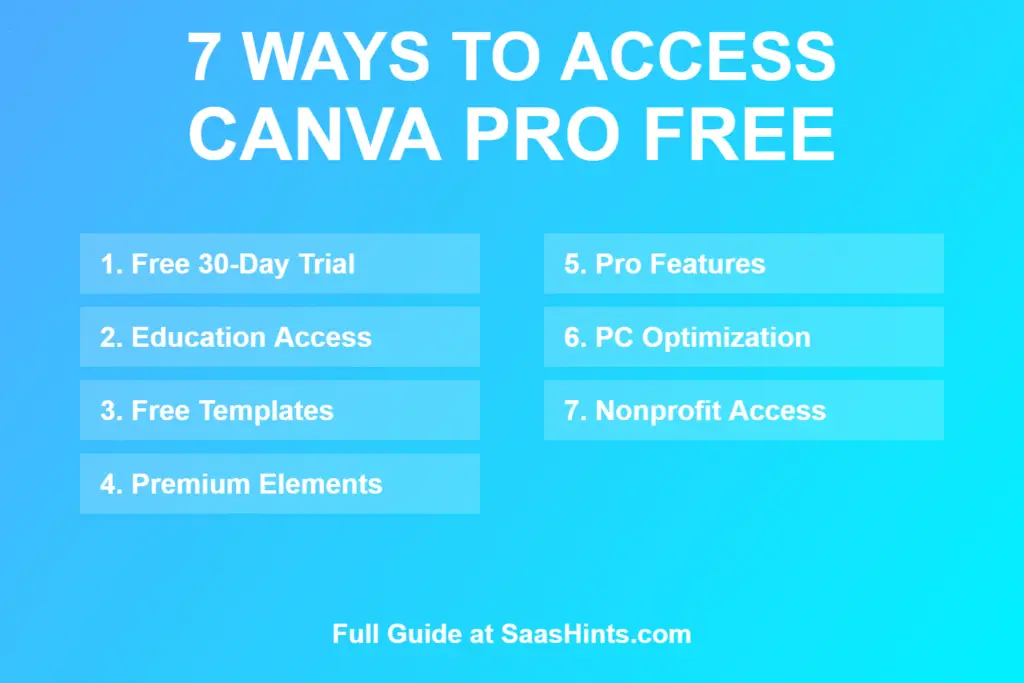
We’ve covered seven legitimate methods for how to use Canva Pro for free legally:
- Free Trial – 30 days of full access (strategic timing)
- Education Access – Best option for students and teachers
- Template Alternatives – Finding and adapting free templates
- Free Elements – Using built-in free resources smartly
- Feature Workarounds – Alternative tools for Pro features
- Desktop Optimization – PC-specific efficiency tips
- Nonprofit Access – Free Pro for qualifying organizations
My Recommended Approach:
- If you’re a student: Use Canva for Education (Method 2) – it’s a no-brainer
- If you need Pro occasionally: Time your free trial strategically (Method 1)
- If you’re on tight budget long-term: Master the workarounds (Methods 3-5)
- If you run a nonprofit: Apply for nonprofit access (Method 7)
None of these methods involve piracy, account sharing, or violating terms of service. They’re all legitimate ways to access Canva’s powerful features without the monthly fee.
Remember, the goal isn’t to avoid paying forever—it’s to access professional design tools when budget constraints might otherwise hold you back. As your needs and budget grow, Canva Pro might eventually make sense. Until then, you’ve got everything you need right here.
Ready to level up your design game with more free tools? Explore our complete SaaS tools directory at SaasHints for more resources like this. We’re constantly updating with new guides on maximizing free software for business and creative work.
Have you tried any of these methods? Found other legitimate ways to access Canva Pro features for free? Drop a comment below and share your experience!
Frequently Asked Questions
How to use Canva Pro for free legally?
The most legal ways to use Canva Pro for free include: signing up for Canva for Education if you’re a student or teacher (provides free lifetime access while enrolled), using the 30-day free trial strategically, applying for Canva for Nonprofits if you work with a qualified organization, or using free alternatives and workarounds for specific Pro features like background removal through Remove.bg.
How can students use Canva Pro for free?
Students can use Canva Pro for free through Canva for Education by verifying their student status with an official school email address (.edu domain or school-specific email). Visit canva.com/education, sign up with your school email, and complete verification. If automatic verification fails, manually upload proof of enrollment like a student ID or transcript. Once verified, you get full Pro access free for as long as you’re enrolled.
How to use Canva Pro templates without paying?
To use Canva Pro templates for free, search for similar free alternatives using the “Similar Templates” feature at the bottom of Pro template pages. Filter search results by “Free” in the sidebar. Alternatively, reverse engineer Pro templates by recreating their layouts using free elements and your own images. You can also explore community-created templates which are often free and professionally designed.
Can I use Canva Pro for free lifetime?
While there’s no true “lifetime free” Canva Pro for everyone, students and teachers get free access through Canva for Education for as long as they remain enrolled or employed at educational institutions. This could mean 4+ years of free access for college students. Qualified nonprofits also receive free indefinite access. Otherwise, the 30-day free trial is the longest free access available for general users, though you can strategically time trials around major projects.
How to use background remover in Canva for free?
To remove backgrounds without Canva Pro, use free alternative tools like Remove.bg (completely free for standard resolution), PhotoRoom mobile app, or Slazzer. Simply upload your image to these services, remove the background, download the transparent PNG file, and upload it back into Canva. Remove.bg offers excellent AI-powered background removal that rivals Canva’s Pro feature, and the free tier handles most web-resolution needs perfectly.
How to access Pro elements in Canva for free?
To access quality elements without Pro, use the filter to show only “Free” elements in Canva’s search results. Additionally, upload your own assets from free sources like Unsplash (photos), Pexels (photos and videos), Flaticon (icons), and Icons8 (icons). You can also create custom elements using Canva’s shape tools, or combine free elements creatively to make unique graphics that don’t require Pro access.
Can I use Canva Pro with school email?
Yes, using your school email (.edu address or your school’s domain) is the primary way to get free Canva Pro through Canva for Education. Sign up at canva.com/education with your school email address, and Canva will verify your student or teacher status. Most educational institutions are automatically recognized, giving you instant Pro access. If verification fails, you can manually upload proof of enrollment or employment at your educational institution.
How to use bulk create in Canva without Pro?
Without Canva Pro, bulk create isn’t directly available, but you can achieve similar results by manually duplicating designs and editing each copy, or using a combination of Google Sheets with free browser extensions that connect data to Canva templates. For small batches (under 20 designs), manual duplication works adequately. Alternatively, export your template data requirements to spreadsheets and use third-party bulk creation tools that integrate with Canva’s free version, though these require more setup time.
Last updated: December 2025 | This article is part of SaasHints’ commitment to helping you maximize free software tools for business and creative work. Subscribe to our newsletter for more guides on getting the most from free SaaS tools.